
Prerequisites
-
RS2 / Acre Access IT is installed and operational.
-
RS2 REST API is enabled and reachable from the HIS Agent host.
-
Supported RS2 / Acre Access IT versions: RS2 WEB API v 11.2.
Configuration
PACS Configuration
Step 1: Log in to Access It, and the system status screen appears.
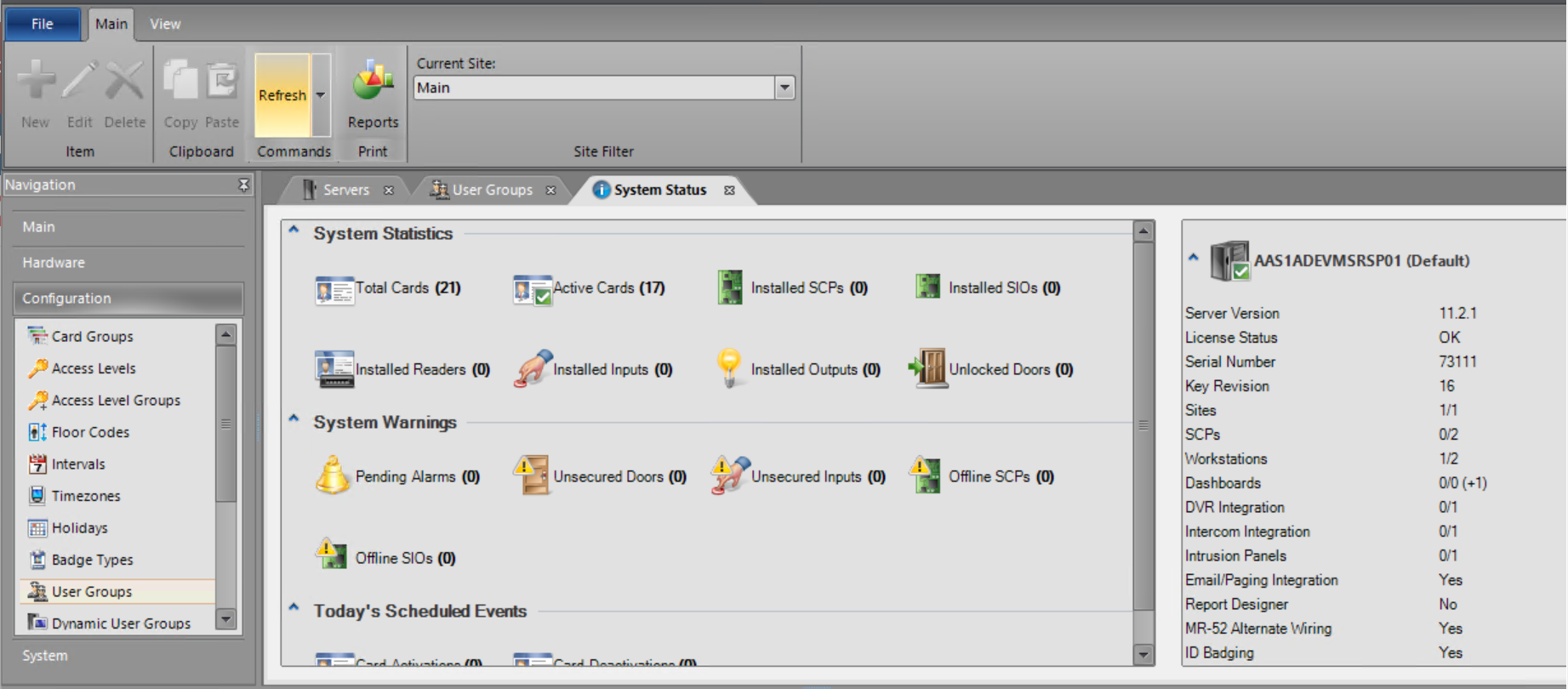
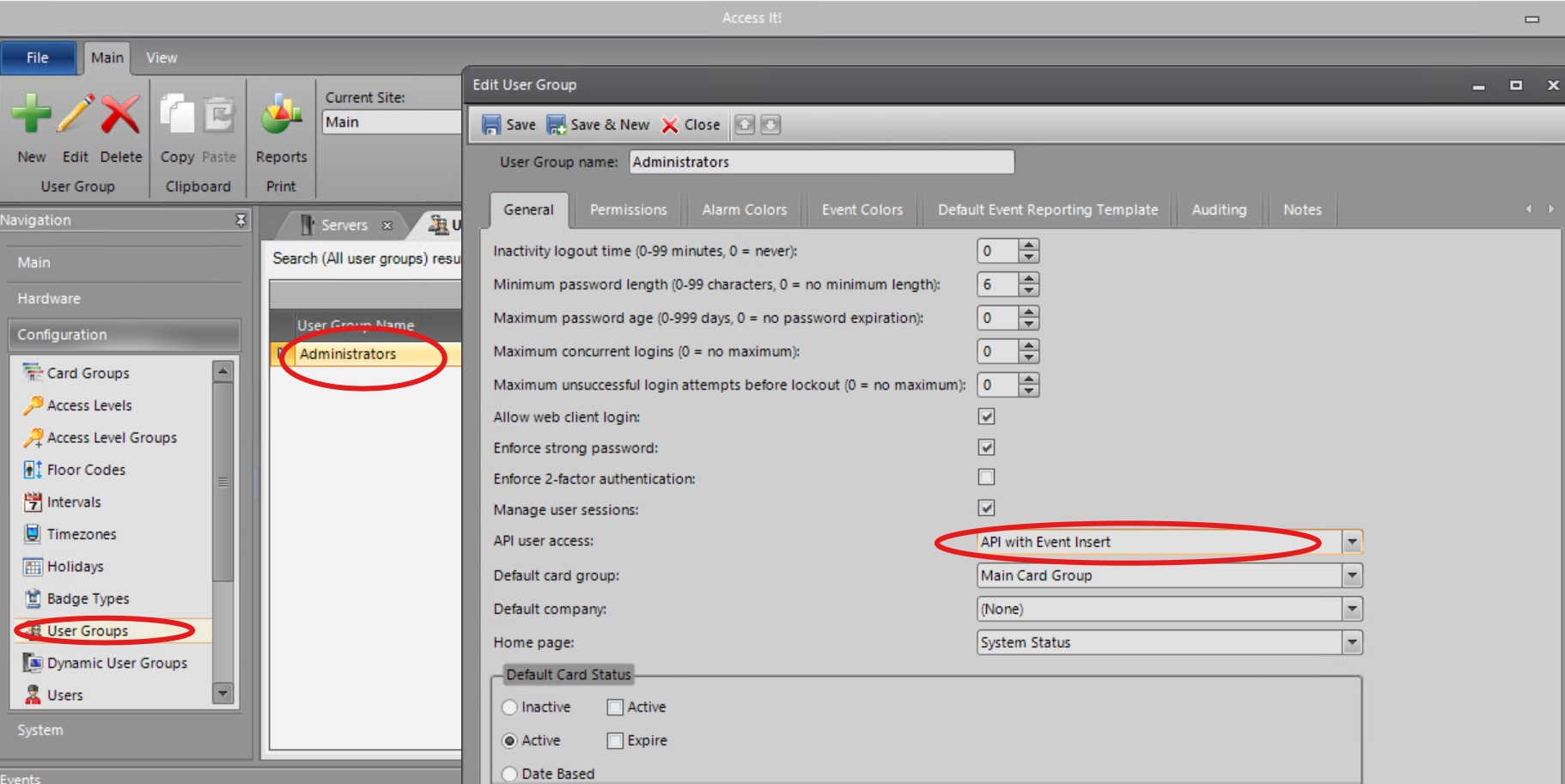
Step 2: Click User Groups, then Administrators, and set API user access to 'API with Event Insert'.
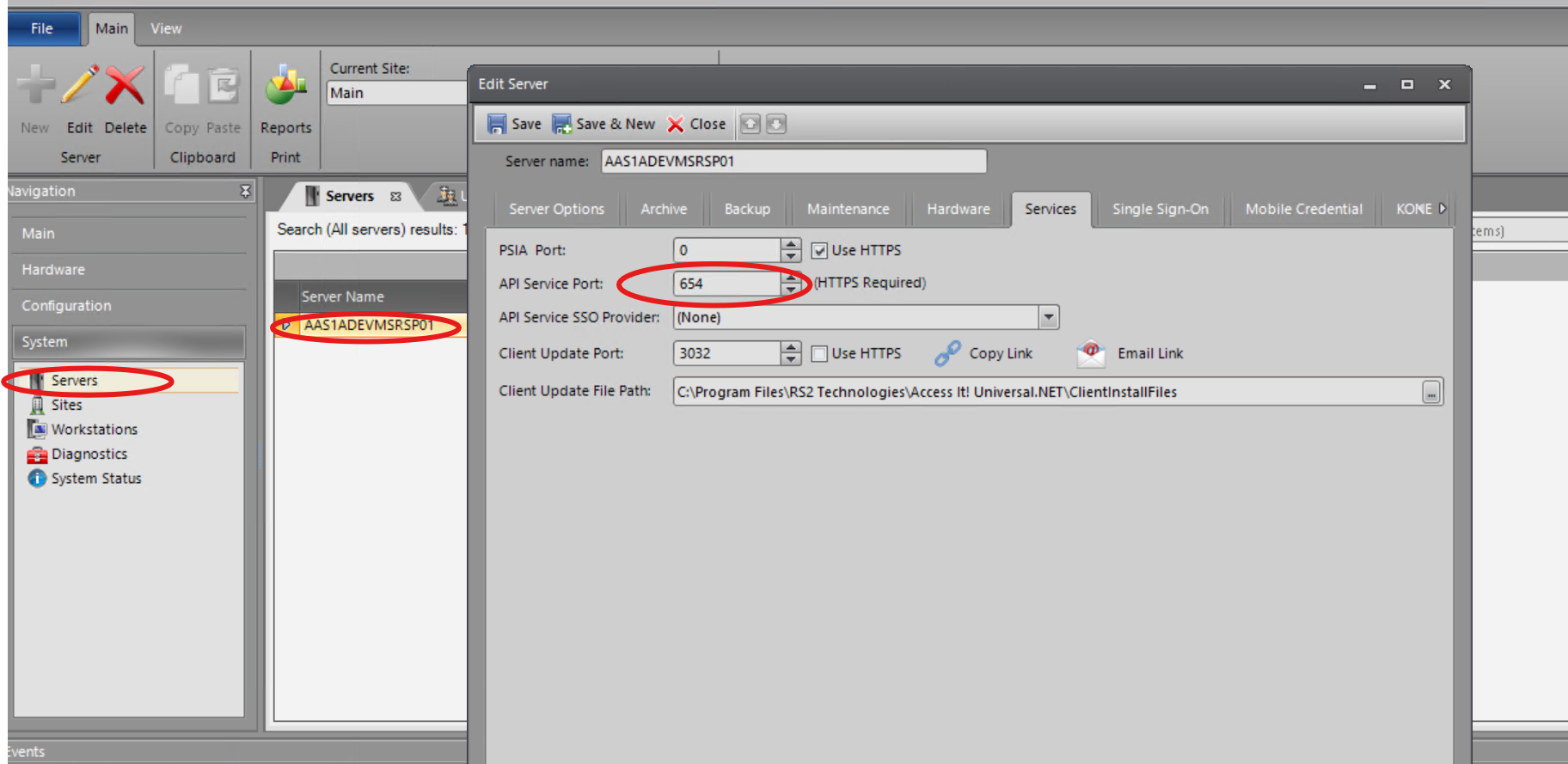
Step 3: Click Servers ->Server Name and set the API Service Port number.
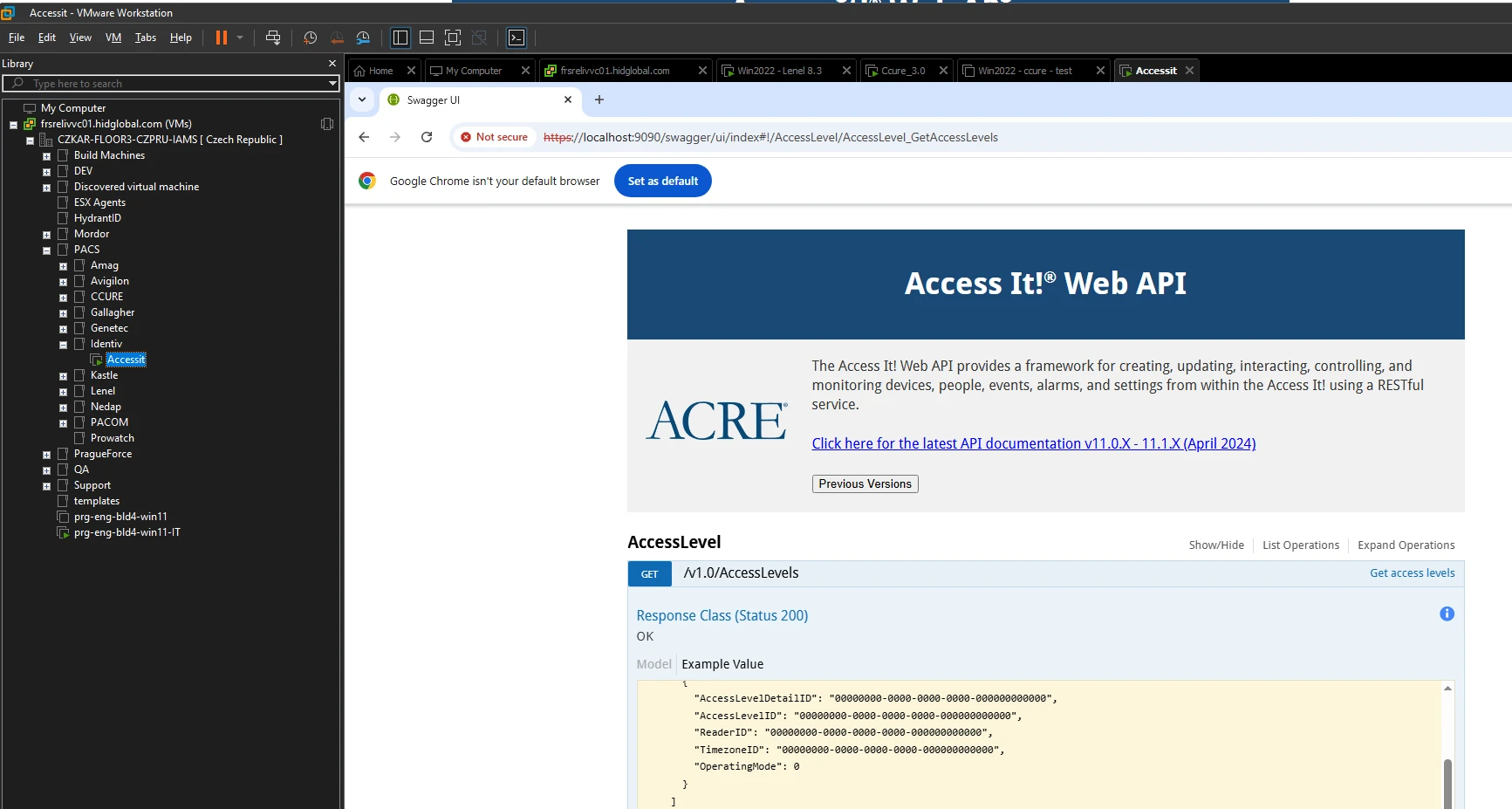
Step 4: Check you are able to access the API URL from the swagger
Agent Configuration
General agent startup
Step 1: Download
To obtain the pacs-agent_{pacs-name} Docker image, follow the HID Agent Administration Guide for End-Customer.
Step 2: Create environment
Create a file named .env with the following content:
Agent__TenantId=example-tenant-id
Agent__PacsId=example-pacs-id
Auth__ClientId=your-client-id
Auth__ClientSecret=your-client-secret
In case you are connecting to a different environment than HID production, you need to set the proper URLs:
Auth__AuthNProvider=https://auth.example.com
Agent__PlatformUrl=https://platform.example.com
-
Adjust all file parameters according to your setup.
-
It is recommended to store this configuration on an encrypted drive or delete
.envfile as soon as the Docker image is executed.
Step 3: Run Docker image
docker run -d \
  --env-file .env \
  pacs-agent-{pacs-name}:latest
Step 4: Check that the Docker image is running
docker ps
Environment variables description
Related to HIS
-
Agent__PlatformUrl: HID Integration Service URL (https://his.hidglobal.com/ais/v1).-
This information is provided by HID. By default, this is set automatically to the production environment value and does not need to be set manually in most cases.
-
-
Agent__TenantId: Tenant ID within HID Integration Service.-
This information is provided by HID.
-
-
Agent__PacsId: Unique ID assigned to the agent during registration.-
This information is provided by HID.
-
If you registered your PACS on your own, this would be the
IDyou gave to the PACS.
-
Related to HID Authentication Service
-
Auth__AuthNProvider: HID Authentication Service URL (https://auth-us.api.hidglobal.com/idp/t89d23e0b2445510399335/authn).-
This information is provided by HID. By default, this is set automatically to the production environment value and does not need to be set manually in most cases.
-
-
Auth__ClientId: Client ID obtained during registration.-
This information is provided by HID.
-
-
Auth__ClientSecret: Client secret obtained during registration.-
This information is provided by HID.
-
Don't forget to replace the {pacs-name} placeholders with the actual name of the pact agent.
Agent-specific configuration
{pacs-name} = rs2_access-it
Environment variables for RS2 Access It! Agent:
-
RS2__BaseUrl: Base URL of the RS2 REST API, e.g.:https://<rs2-server>:<api-port>/ -
RS2__PublicKey: This value should be provided with your RS2 license. -
Rs2__Username: Username to authenticate the RS2 webservice. -
RS2__Password: Password for the username above. -
RS2__Fields__ExternalIdFieldKey
RS2 cardholder user field used to store the identity external ID. The agent also uses this field to find existing identities during import and create operations. Example value:UserText1. -
RS2__Fields__PhoneFieldKey
RS2 cardholder user field used to store the identity phone number. The agent writes phone numbers to this field and reads them back when returning identity details. Example value:UserText2. -
RS2__Fields__EmailFieldKey
RS2 cardholder user field used to store the identity email address. The agent writes email addresses to this field and reads them back when returning identity details. Example value:UserText3.
Agent-specific .env file part example:
RS2__BaseUrl=https://localhost:9090
RS2__Username=rs2-username
RS2__Password=rs2-password
RS2__PublicKey=rs2-PublicKey
RS2__Fields__ExternalIdFieldKey=UserText1
RS2__Fields__PhoneFieldKey=UserText2
RS2__Fields__EmailFieldKey=UserText3
Limitations
Unsupported Operations
-
Visitor-related endpoints (PACS doesn’t support native Visitors)
-
PIN-Credential endpoints:
-
CreatePin(Identity / Visit) -
GetPin(Identity / Visit) -
UpdatePin(Identity / Visit) -
RemovePin(Identity / Visit) -
ActivatePin(Identity / Visit) -
DeactivatePin(Identity / Visit)
-
-
Events Writing to the PACS
Limited Operations
-
RS2 cannot assign a card format to a credential, even though it is mandatory when creating one. In other words, the valid card format is required during creation, but it is ignored.
-
CreateCredential -
UpdateCredential -
GetCredential
-
RS2 does not handle concurrent requests reliably - parallel operations often fail with SQL Server deadlocks ("Transaction (Process ID x) was deadlocked on lock resources... Rerun the transaction."). It is recommended to keep workerCount set to 1.
Naming Mapping
Entities
|
AIS Entity Name |
PACS GUI Term |
|---|---|
|
Identity |
Cardholder |
|
Credential |
Card |
|
Card Format |
Card Format |
|
Access Unit |
Access Level |
Creation of extension fields
-
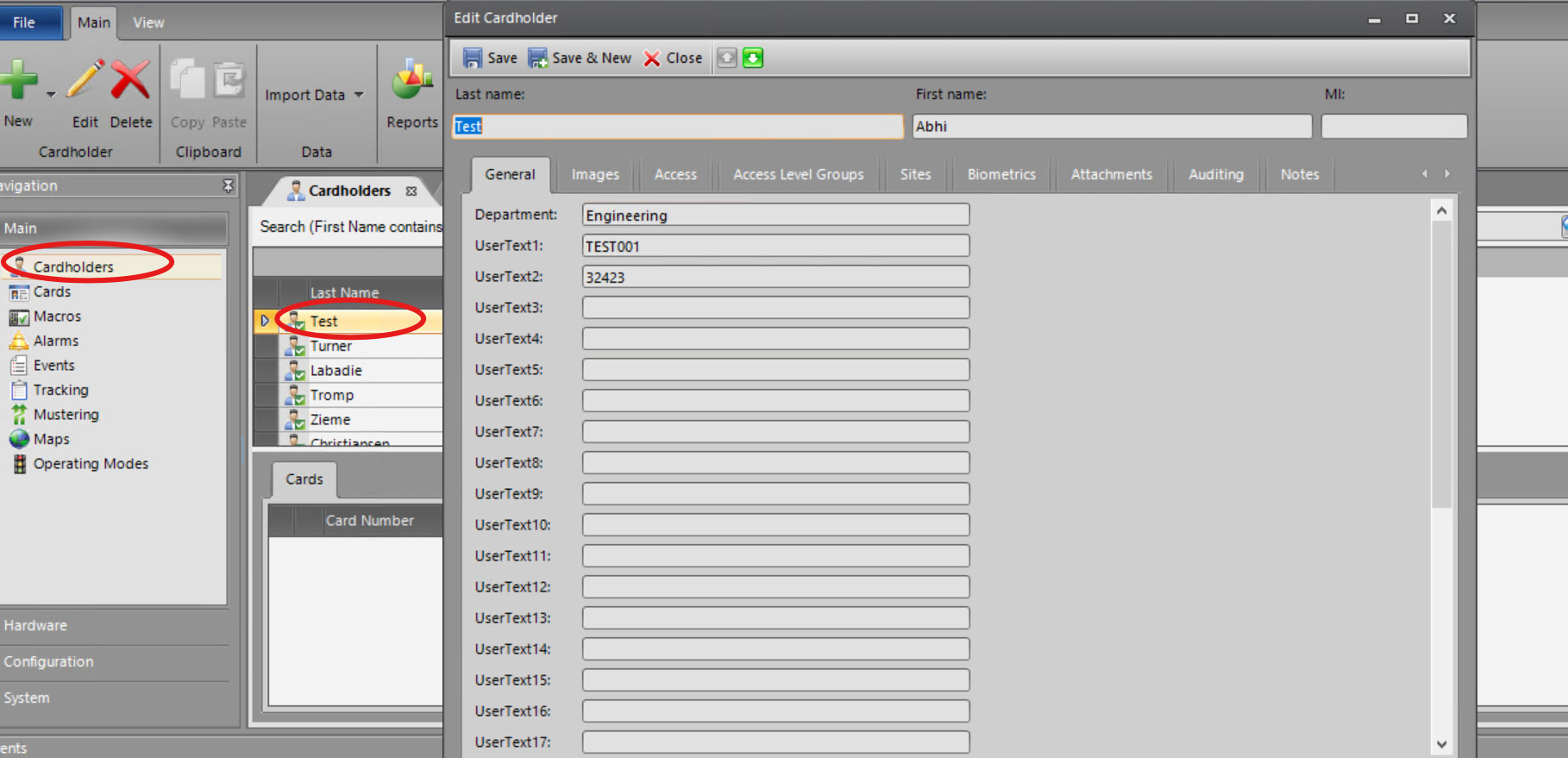
RS2 supports extension fields. There are predefined user columns on the Cardholder such as UserText1 to UserText20 for text data.
In our implementation, if the user omits these fields in the agent configuration, we use the following defaults:-
UserText1 for ExternalId
-
UserText2 for Phone
-
UserText3 for Email
There are also UserDate1 to UserDate5 fields for date/time values, and UserNumeric1 to UserNumeric5 fields for numeric data.
-
Manual for Creating an EF in the PACS
-
You cannot create a new custom EF on the Access It! system, but you can use predefined fields for custom purposes: After logging in, you should see the navigation bar with Main. Click Cardholders, open any cardholder, and the General screen will appear with all the predefined user fields.
Supported entities and data types
List of Entities Supporting Extension Fields (Relevant to AIS)
|
Entity |
Supports EFs |
|---|---|
|
Identity |
Yes |
|
Visit |
No |
|
Credential |
No |
|
Access Unit |
No |
List of Supported Data Types for Extension Fields
|
Variable type (AIS) |
Variable type (RS2) |
Note (RS2) |
|---|---|---|
|
String |
String |
|
|
Integer |
Numeric |
|
|
DateTime |
Date |
It stores only the date, not the time |