
Prerequisites
-
This document describes all supported versions of the agent.
-
Supported PACS versions: Requirements
-
A GMS Operator is required to make all settings mentioned in this document.
-
The Agent needs a GMS Operator to access the Pacom SDK.
-
The Agent needs a connection string to access the Pacom SQL Database.
-
Pacom SQL Database should be accessible for the Agent.
-
The Agent requires access to Pacom GMS folder.
-
The Pacom GMS (GUI) application should be running. The GMS API is part of this application.
Please make sure you have a valid Pacom GMS license. It’s mandatory to run the Agent.
Configuration
PACS Configuration
Creating the technical user
-
Open
Pacom Graphical Monitoring Systemapplication. -
Click on
Operator Setupbutton andAddbutton -
Fill in the
Last Name,Initials, andPassword. -
Set up
Account ExpiryandPassword Expiry(preferably as long as possible). -
Switch to
Privilegestab and select theAdministratorsprofile OR check all checkboxes.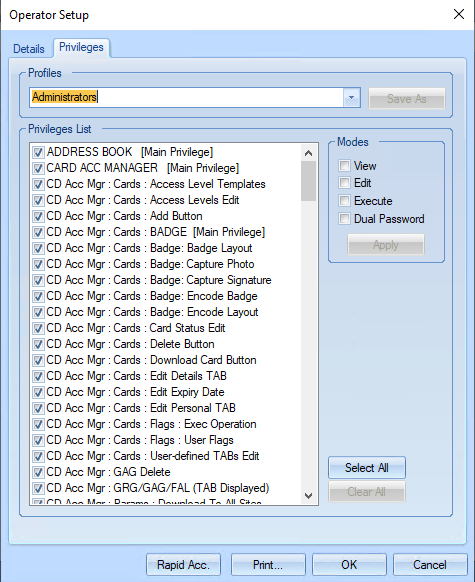
-
Click on
OKbutton. -
The agent needs to know the
OperatorId(Available in GMS asOperator No).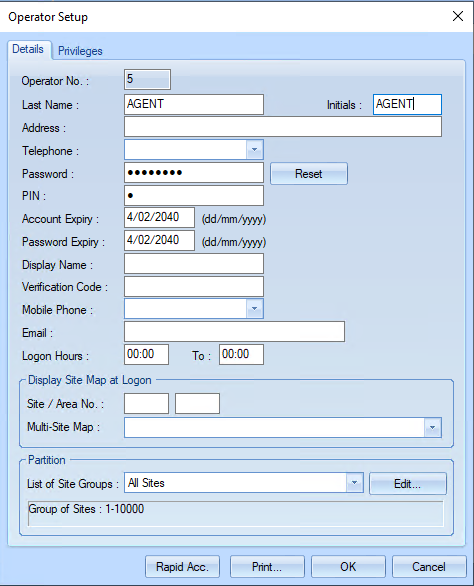
An operator with Operator ID = 5
Turn on Pacom GMS API
On the server where Pacom GMS is installed:
-
Open File Explorer.
-
Open the file in a Text Editor:
C:\GMS\Customer\Updatable\GMS32_COMMON.INI -
Make sure this line is available in the section
[SYSTEM PARAMETERS]GMS API Port=64000 -
Restart the Pacom GMS application
Agent Configuration
General agent startup
Step 1: Download
To obtain the pacs-agent_{pacs-name} Docker image, follow the HID Agent Administration Guide for End-Customer.
Step 2: Create environment
Create a file named .env with the following content:
Agent__TenantId=example-tenant-id
Agent__PacsId=example-pacs-id
Auth__ClientId=your-client-id
Auth__ClientSecret=your-client-secret
In case you are connecting to a different environment than HID production, you need to set the proper URLs:
Auth__AuthNProvider=https://auth.example.com
Agent__PlatformUrl=https://platform.example.com
-
Adjust all file parameters according to your setup.
-
It is recommended to store this configuration on an encrypted drive or delete
.envfile as soon as the Docker image is executed.
Step 3: Run Docker image
docker run -d \
  --env-file .env \
  pacs-agent-{pacs-name}:latest
Step 4: Check that the Docker image is running
docker ps
Environment variables description
Related to HIS
-
Agent__PlatformUrl: HID Integration Service URL (https://his.hidglobal.com/ais/v1).-
This information is provided by HID. By default, this is set automatically to the production environment value and does not need to be set manually in most cases.
-
-
Agent__TenantId: Tenant ID within HID Integration Service.-
This information is provided by HID.
-
-
Agent__PacsId: Unique ID assigned to the agent during registration.-
This information is provided by HID.
-
If you registered your PACS on your own, this would be the
IDyou gave to the PACS.
-
Related to HID Authentication Service
-
Auth__AuthNProvider: HID Authentication Service URL (https://auth-us.api.hidglobal.com/idp/t89d23e0b2445510399335/authn).-
This information is provided by HID. By default, this is set automatically to the production environment value and does not need to be set manually in most cases.
-
-
Auth__ClientId: Client ID obtained during registration.-
This information is provided by HID.
-
-
Auth__ClientSecret: Client secret obtained during registration.-
This information is provided by HID.
-
Don't forget to replace the {pacs-name} placeholders with the actual name of the pact agent.
Agent-specific configuration
{pacs-name} = pacom_gms
Environment variables for Pacom:
-
Pacom__Api__GmsServerName: IP address or domain of GMS. E.g., 10.154.52.164. -
Pacom__Api__GmsPort: A port where GMS API is available. Open a fileC:\GMS\Customer\Updatable\gms32_common.inion the computer where the GMS is running - find a lineGMS API Port=64000→ The port is64000in this example. -
The cardholder photo access:
-
Pacom__API__GmsRootFolder: (Optional - default isGMS) A GMS ROOT folder. UseGMSonly for locationC:\GMS. -
Pacom__Api__GmsPhotoFolder: (Optional - default isCustomer\CardAcc\PHOTO) An image storage subfolder fromPacom__API__GmsRootFolder. UseCustomer\CardAcc\PHOTOforC:\GMS\Customer\CardAcc\PHOTO. This folder has to be reachable for the Agent. -
Pacom__Api__GmsSambaUser: A user name of Windows user who access the machine where the Pacom GMS is running. -
Pacom__Api__GmsSambaPassword: Related withPacom__Api__GmsSambaUser. -
Please check HIS PACOM GMS Agent | Access to GMS folder for more information.
-
-
Pacom__Api__WorkstationId: (Optional - default is42) Location ID of the GMS machine. -
Pacom__Api__OperatorId: The operatorIDfrom HIS PACOM GMS Agent | Creating the technical user. -
Pacom__Db__ConnectionString: Replace10.154.52.164by URL of the database server.userandpasswordby a user with read rights to the Pacom database.
E.g.Data Source=10.154.52.164;Persist Security Info=True;User ID=user;Password=password;Pooling=False;MultipleActiveResultSets=False;Encrypt=False;TrustServerCertificate=False;Application Name="SQL Server Management Studio";Command Timeout=0 -
Pacom__Fields__ExternalIdFieldKey: Please, select an ID from HIS PACOM GMS Agent | Available User Fields . This field requires 36 characters as a minimum. E.g.UserField2. -
Pacom__Fields__EmailFieldKey: Please, select an ID from HIS PACOM GMS Agent | Available User Fields . It’s recommended to use as much characters as possible. E.g.UserField3. -
Pacom__Fields__IdFieldKey: Please, select an ID from HIS PACOM GMS Agent | Available User Fields . This field requires 36 characters as a minimum. E.g.UserField4. -
Pacom__Fields__IdentityUserTypeName: An User Type which is used when a new Identity is created through the Agent. The list of available User Types is available for example in aCardholder Detail → Card Detail → User Type.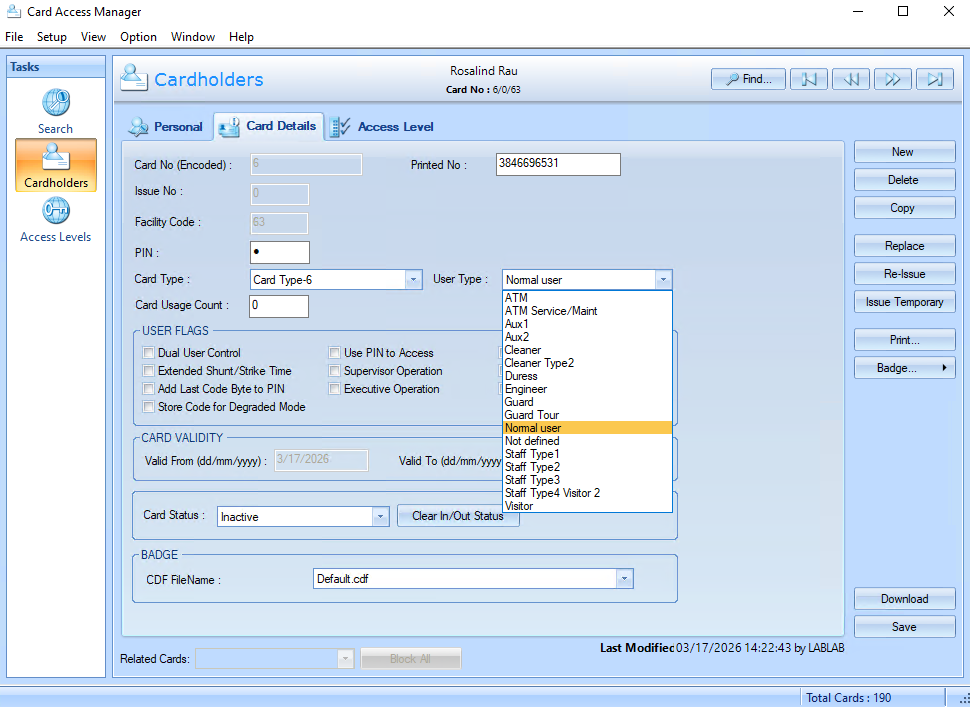
-
Pacom__Fields__VisitUserTypeName: An User Type which is used when a new Visit is created through the Agent. The list of available User Types is available for example in aCardholder Detail → Card Detail → User Type. -
Pacom__TechnicalCard__Name: Create a technical card type and the name insert here e.g.Technical Card.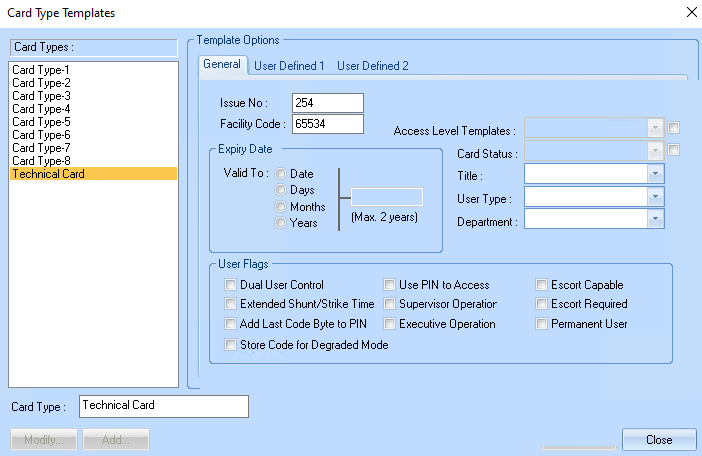
-
Pacom__TechnicalCard__DefaultGlobalAccessGroupName: Add a default Global Access Group name here. A list is available:Cardholder Detail → Access Level → Global Access Groups.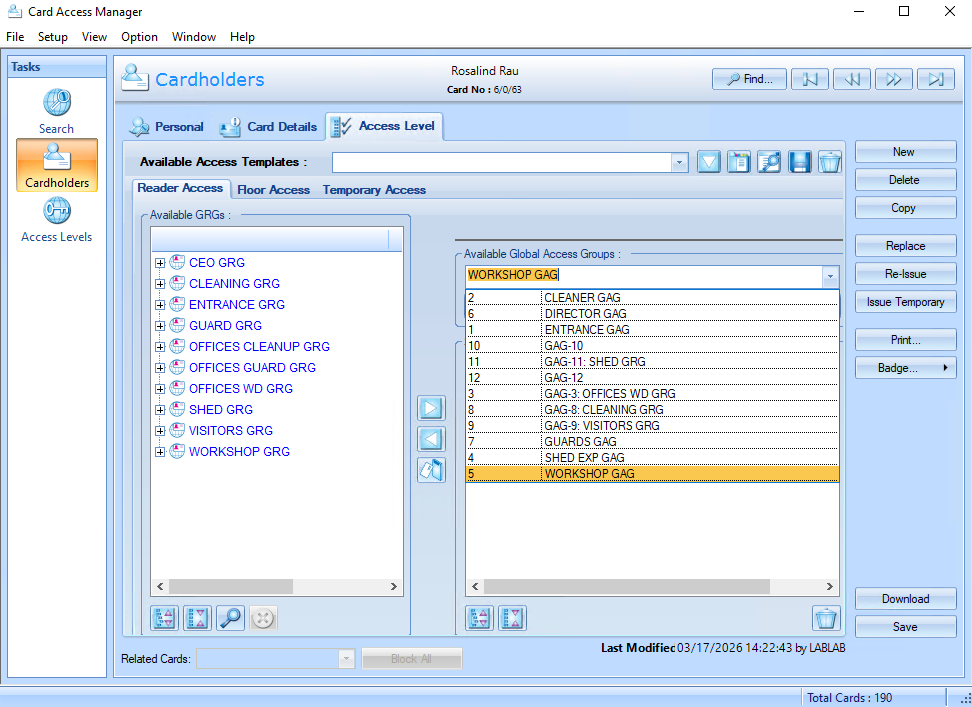
-
Pacom__TechnicalCard__FacilityCode(optional): Range: 0-65534; Default: 65534 -
Pacom__TechnicalCard__IssueCode(optional): Range: 0-254; Default: 254 -
Pacom__TechnicalCard__CardNumberFrom(optional): Range: 0-4294967294; Default: 2147483647 -
Pacom__TechnicalCard__CardNumberTo(optional): Range: 0-4294967294; Default: 4294967294
The Pacom requires a card assigned to an Identity/Visitor. The technical card is used as a placeholder before a proper Credential is assigned.
Please, use FacilityCode and IssueCode and CardNumber range that never appear in your system. This part is optional. The default values are going to be used.
DefaultGlobalAccessGroupName is mandatory.
Agent-specific .env file part example:
Pacom__Api__GmsServerName=<hostname>
Pacom__Api__GmsPort=<port>
Pacom__API__GmsRootFolder=GMS
Pacom__Api__GmsPhotoFolder=Customer\CardAcc\PHOTO
Pacom__Api__GmsSambaUser=<samba-user-name>
Pacom__Api__GmsSambaPassword=<samba-user-password>
Pacom__Api__WorkstationId=42
Pacom__Api__OperatorId=<operator-id>
Pacom__Db__ConnectionString=<db-connection-string>
Pacom__Fields__ExternalIdFieldKey=<user-field-id-1>
Pacom__Fields__EmailFieldKey=<user-field-id-2>
Pacom__Fields__IdFieldKey=<user-field-id-3>
Pacom__Fields__IdentityUserTypeName=<user-type-1>
Pacom__Fields__VisitUserTypeName=<user-type-2>
Pacom__TechnicalCard__Name=<technical-card-type-name>
Pacom__TechnicalCard__DefaultGlobalAccessGroupName=<global-access-group-name>
Pacom__TechnicalCard__FacilityCode=<technical-card-facility-code>
Pacom__TechnicalCard__IssueCode=<technical-card-issue-code>
Pacom__TechnicalCard__CardNumberFrom=<technical-card-card-id-from>
Pacom__TechnicalCard__CardNumberTo=<technical-card-card-id-to>
Limitations
-
Extension fields are statically predefined. List of available extension fields: HIS PACOM GMS Agent | Available User Fields
-
Each Identity and Visit supports just one OR no Credential.
-
Each Identity and Visit has to have one assigned Access Unit. The agent use
Pacom__TechnicalCard__DefaultGlobalAccessGroupNameif no Access Unit was assigned yet. -
Maximum Identity/Visit picture resolution is
7785x5838px OR6724x6724px.
Unsupported operations
-
All PIN first-factor operations for identities and visits
-
IdentityActivate
-
IdentityDeactivate
-
IdentityPin
-
VisitCheckIn
-
VisitCheckOut
-
VisitPin
-
EventsCollect
-
Events Writing to the PACS
Limited operation
|
Operation |
Note |
|---|---|
|
|
One only OR no credential is supported. A dummy card is created when no Card is assigned. |
|
|
Custom extension fields for identity credentials and visit credentials are not supported. Provides the self (native) fields only. |
|
|
Identity/Visit States are not supported by the PACS. The agent returns always Active. |
|
|
Visit |
Naming Mapping
Entities
|
AIS Entity Name |
PACS GUI Term |
|---|---|
|
Identity |
Cardholder (user type: |
|
Visit |
Cardholder (user type: |
|
Card Format |
Card Type |
|
Identity Credential |
Card |
|
Visit Credential |
Card |
|
Access Unit |
Global Access Group (GAG) |
|
Identity Access |
Global Access Group (GAG) |
|
Visit Access |
Global Access Group (GAG) |
Operations
N/A
Creation of extension fields
Extension fields are statically predefined. See the list below.
The list of available User Fields
|
ID |
Type |
Maximum number of characters |
|---|---|---|
|
UserField2 |
String |
41 |
|
UserField3 |
String |
41 |
|
UserField4 |
String |
41 |
|
UserField5 |
String |
41 |
|
UserField6 |
String |
41 |
|
UserField7 |
String |
41 |
|
UserField8 |
String |
41 |
|
UserField9 |
String |
21 |
|
UserField10 |
String |
21 |
|
UserField11 |
String |
21 |
|
UserField12 |
String |
21 |
|
UserField13 |
String |
21 |
|
UserField14 |
String |
21 |
|
UserField15 |
String |
21 |
Supported entities and data types
List of Entities Supporting Extension Fields (Relevant to AIS)
|
Entity |
Supports EFs |
|---|---|
|
Identity |
Yes (limited) |
|
Visit |
Yes (limited) |
|
Credential |
No |
|
Access Unit |
No |
List of Supported Data Types for Extension Fields
|
Variable type (AIS) |
Variable type (Pacom) |
|---|---|
|
Boolean |
Emulated (String) |
|
Integer |
Emulated (String) |
|
Decimal |
Emulated (String) |
|
String |
String |
|
DateTime |
Emulated (String) |
Access to GMS folder
Accessing cardholder pictures requires a properly configured Samba share.
Please, follow these steps:
Prepare the Pacom GMS Machine
Share GMS folder
On the server where Pacom GMS is installed:
-
Open File Explorer.
-
Locate the folder:
C:\GMS -
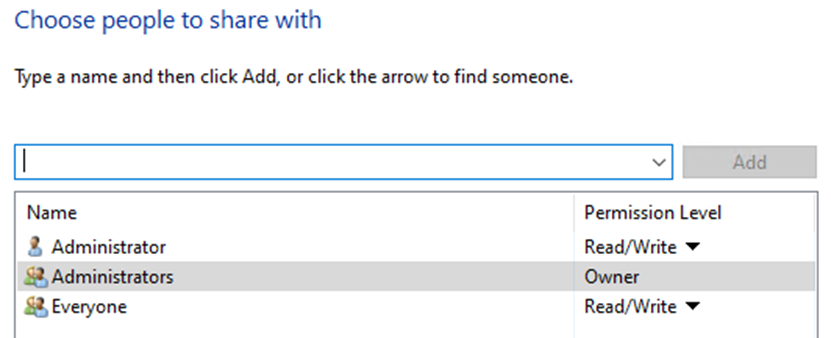
Share this folder on the network as:
\\<hostname>\GMS-
Replace
<hostname>with the server’s actual name. -
Share the folder with a user who should be set up in the Agent configuration.
-
Turn on the Samba v2
On the server where Pacom GMS is installed:
-
Open PowerShell.
-
Run the command for turning on the Samba v2 protocol.
Set-SmbServerConfiguration -EnableSMB2Protocol $true -
Allow Samba on Firewall
netsh advfirewall firewall add rule name="SMB" dir=in action=allow protocol=TCP localport=445
Configure File (Photo) Access in the Agent Settings
The Agent requires paths to specific Pacom configuration files.
Update these settings in the Agent configuration.
Folder settings
-
Pacom__API__GmsRootFolder-
Optional - default is
GMS -
Use
GMSonly for locationC:\GMS.
-
-
Pacom__Api__GmsPhotoFolder-
Optional - default is
GMS -
An image storage subfolder from
Pacom__API__GmsRootFolder. -
Use
Customer\CardAcc\PHOTOforC:\GMS\Customer\CardAcc\PHOTO. This folder has to be reachable for the Agent.
-
Samba user settings
-
Pacom__Api__GmsSambaUser-
A user name of Windows user who access the machine where the Pacom GMS is running.
-
-
Pacom__Api__GmsSambaPassword-
A password related with
Pacom__Api__GmsSambaUser.
-
Please, make sure the
\\Pacom__Api_GmsServerName\Pacom__API__GmsRootFolder\Pacom__Api__GmsPhotoFolder exists on the GMS side and it’s reachable for the Agent for a user Pacom__Api__GmsSambaUser with a Pacom__Api__GmsSambaPassword through the Samba v2 protocol.