
Prerequisites
-
This document describes all supported versions of the agent.
-
Supported PACS versions: Requirements | Agent X PACS Compatibility matrix
-
An Avigilon user with a role of Super Admin is required to make all settings mentioned in this document.
-
The agent also needs to have a user with a Super Admin role. It’s recommended to have a separate user for the agent.
Configuration
PACS Configuration
Creating the technical user
-
Go to the AUA GUI website.
-
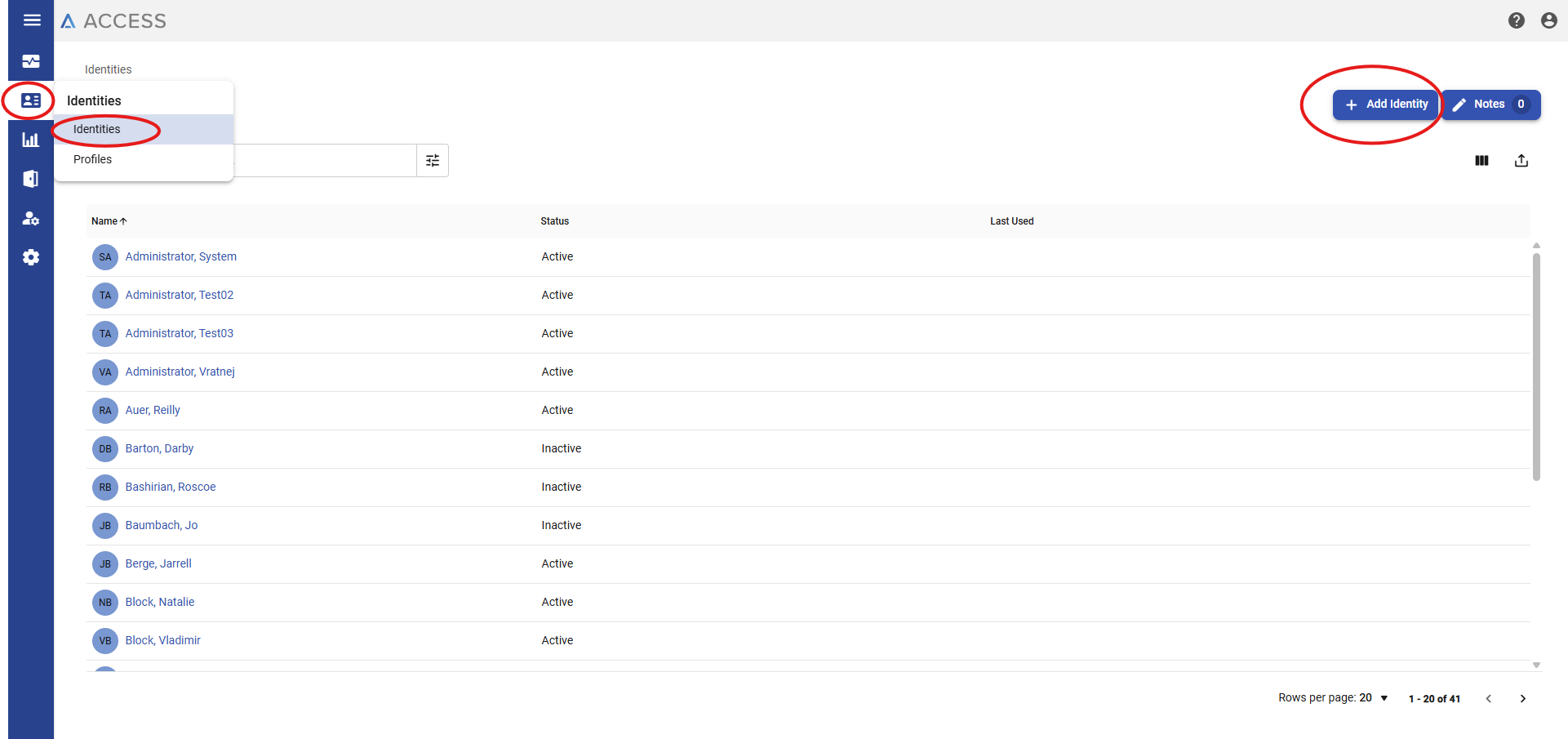
Select Identities in the left menu.
-
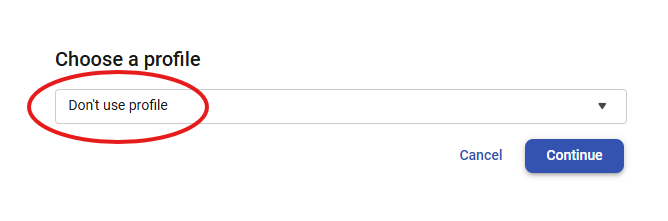
Click on Add Identity and keep it without choosing any profile.
-
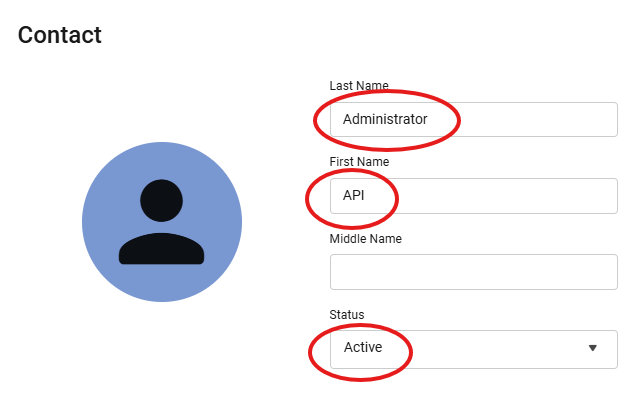
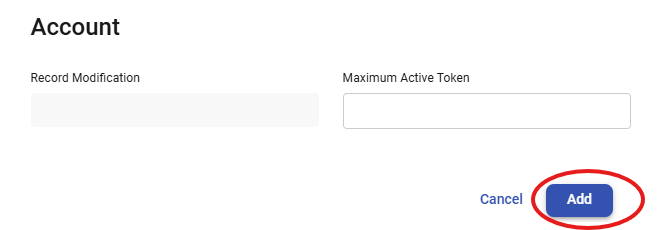
Fill the account like:
-
First and last name: select whatever you like, API Administrator. It's just for easier finding among other identities because the list is combined with all employees and visitors.
-
Set Status: Active.
-
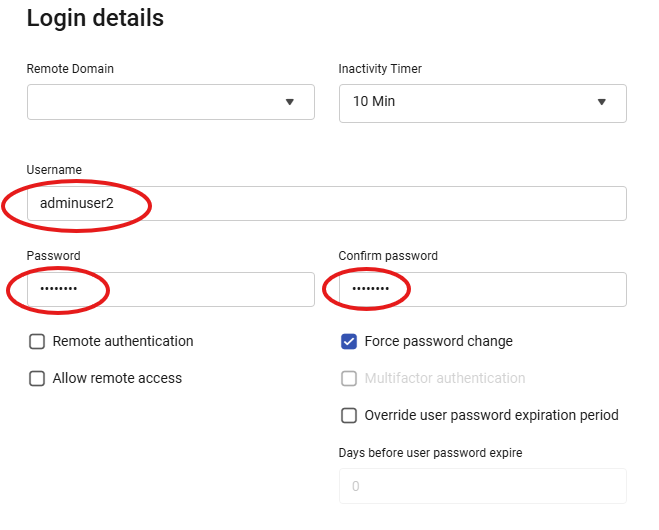
Fill in the username and password (and confirm password) in the login details section.
-
-
Click on the Add.
-
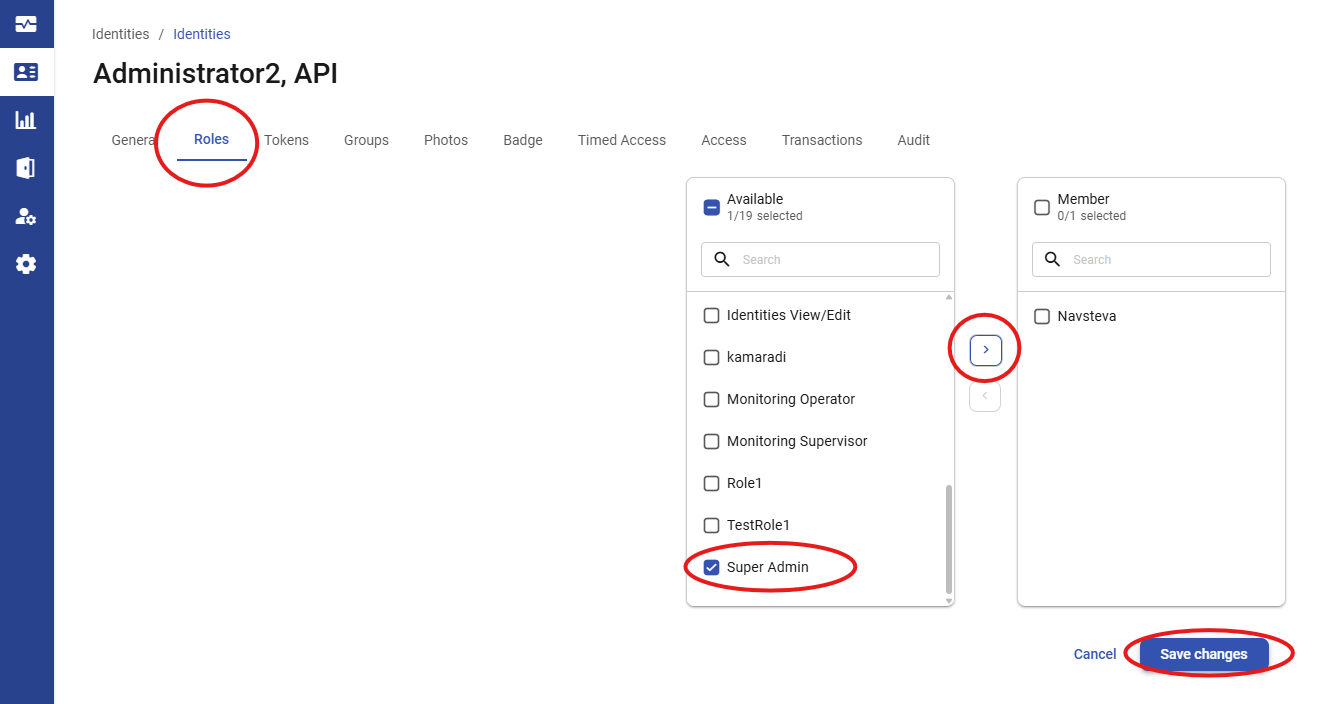
Switch to Roles and select Super Admin on the left side (Available) and move it to the right side (Member).
-
Click on the Save Changes.
-
Now, try to log in as the newly created user into AUA. In a private browser window, log out of your current session. The AUA asks for a new password and finishes the account setup once you try to log in as the newly created user.
-
The new account is usable for the agent when all these steps are finished.
Required PACS-side settings
No special settings are needed.
Creating technical custom fields
No special custom fields are needed for the agent itself.
Agent Configuration
General agent startup
Step 1: Download
To obtain the pacs-agent_{pacs-name} Docker image, follow the HID Agent Administration Guide for End-Customer.
Step 2: Create environment
Create a file named .env with the following content:
Agent__TenantId=example-tenant-id
Agent__PacsId=example-pacs-id
Auth__ClientId=your-client-id
Auth__ClientSecret=your-client-secret
In case you are connecting to a different environment than HID production, you need to set the proper URLs:
Auth__AuthNProvider=https://auth.example.com
Agent__PlatformUrl=https://platform.example.com
-
Adjust all file parameters according to your setup.
-
It is recommended to store this configuration on an encrypted drive or delete
.envfile as soon as the Docker image is executed.
Step 3: Run Docker image
docker run -d \
  --env-file .env \
  pacs-agent-{pacs-name}:latest
Step 4: Check that the Docker image is running
docker ps
Environment variables description
Related to HIS
-
Agent__PlatformUrl: HID Integration Service URL (https://his.hidglobal.com/ais/v1).-
This information is provided by HID. By default, this is set automatically to the production environment value and does not need to be set manually in most cases.
-
-
Agent__TenantId: Tenant ID within HID Integration Service.-
This information is provided by HID.
-
-
Agent__PacsId: Unique ID assigned to the agent during registration.-
This information is provided by HID.
-
If you registered your PACS on your own, this would be the
IDyou gave to the PACS.
-
Related to HID Authentication Service
-
Auth__AuthNProvider: HID Authentication Service URL (https://auth-us.api.hidglobal.com/idp/t89d23e0b2445510399335/authn).-
This information is provided by HID. By default, this is set automatically to the production environment value and does not need to be set manually in most cases.
-
-
Auth__ClientId: Client ID obtained during registration.-
This information is provided by HID.
-
-
Auth__ClientSecret: Client secret obtained during registration.-
This information is provided by HID.
-
Don't forget to replace the {pacs-name} placeholders with the actual name of the pact agent.
Agent-specific configuration
{pacs-name} = avigilon
Environment variables for Avigilon Unity Access Agent:
-
Avigilon__Api__ServiceUrl: IP address or domain of AUA. E.g., https://10.154.52.146/ -
Avigilon__Api__Username: Username from creating the technical user. -
Avigilon__Api__Password: Password for the username above. -
Avigilon__AccessUnit__ExcludedRoles__<n>: It should be a list of roles in a format likeAvigilon__AccessUnit__ExcludedRoles__<n>: <ID>, where<n>is just an index in an array - a sequence from 0 ton(0, 1, 2, …) and<ID>is an ID of an Avigilon role — Super Admin, Admin, etc. Please, check theExcludedRolessection for more details below. -
Avigilon__Token__DeactivationDays: Number of days until token deactivation.
Agent-specific .env file part example:
Avigilon__Api__ServiceUrl=<link-to-web>
Avigilon__Api__Username=<user-name>
Avigilon__Api__Password=<password>
Avigilon__AccessUnit__ExcludedRoles__0=<ID_1>
Avigilon__AccessUnit__ExcludedRoles__1=<ID_2>
Avigilon__Token__DeactivationDays=500
ExcludedRoles:
-
Avigilon uses roles for setting system privileges and access privileges through assigning access groups to roles. The
ExcludedRoleslist is trying to hide the system privileges like Super Admin and Admin and does not show these internal roles in AIS. -
The
ExcludedRolesis a list of role IDs. Role IDs can be found in the AUA GUI at Roles -> Select a role. The URL contains it, e.g.,https://10.154.52.146/roles/1/edit, where1is the ID in this example. -
It’s recommended to exclude at least Super Admin and Admin.
Self signed HTTP SSL certificate
The agent supports self-signed (untrusted) SSL certificates.
Agent-specific .env file can be extended as follows:
-
Add the self-signed SSL certificate fingerprint:
Avigilon__Api__SslCertificateFingerprintSha256=<certificate-fingerprinte> -
Ignore the SSL certificate completely.
Avigilon__Api__TurnOffSslVerification=true
Option 2 (ignore the SSL certificate) is not recommended in production.
SSL/TLS encryption is still used, but the agent will accept any server certificate, including invalid or untrusted ones.
Limitations
-
Extension fields have to be created manually; please see the extension field setup.
Unsupported operations
-
CreatePin(Identity/Visit) -
GetPin(Identity/Visit) -
UpdatePin(Identity/Visit) -
RemovePin(Identity/Visit) -
ActivatePin(Identity/Visit) -
DeactivatePin(Identity/Visit) -
Events Writing to the PACS
Limited operation
|
Operation |
Note |
|---|---|
|
|
Visit |
|
|
A token can only be marked active if the identity/visit is active. |
|
|
Every single token should have a unique internal number per the whole AUA. The internal number is |
|
|
The facility ID is not supported by AUA. The agent ignores the value. And returns 0 in places where it is mandatory. |
|
|
The format is not supported by AUA. The agent ignores the value. And returns Token Type in this field. |
|
Credential extension fields (identity/visit) |
The extension fields for identity credentials and visit credentials are not supported. Provides the self only. |
Naming Mapping
Entities
|
AIS Entity Name |
PACS GUI Term |
|---|---|
|
Identity |
Identity (type: Employee) |
|
Visit |
Identity (type: Visitor) |
|
Card Format |
No entity available |
|
Identity Credential |
Token |
|
Visit Credential |
Token |
|
Access Unit |
Role |
|
Identity Access |
Role |
|
Visit Access |
Role |
Operations
|
AIS Entity Operation |
PACS GUI Term |
|---|---|
|
Check-in |
Activate |
|
Check-out |
Deactivate |
Creation of extension fields
Manual for Creating an EF in the PACS
-
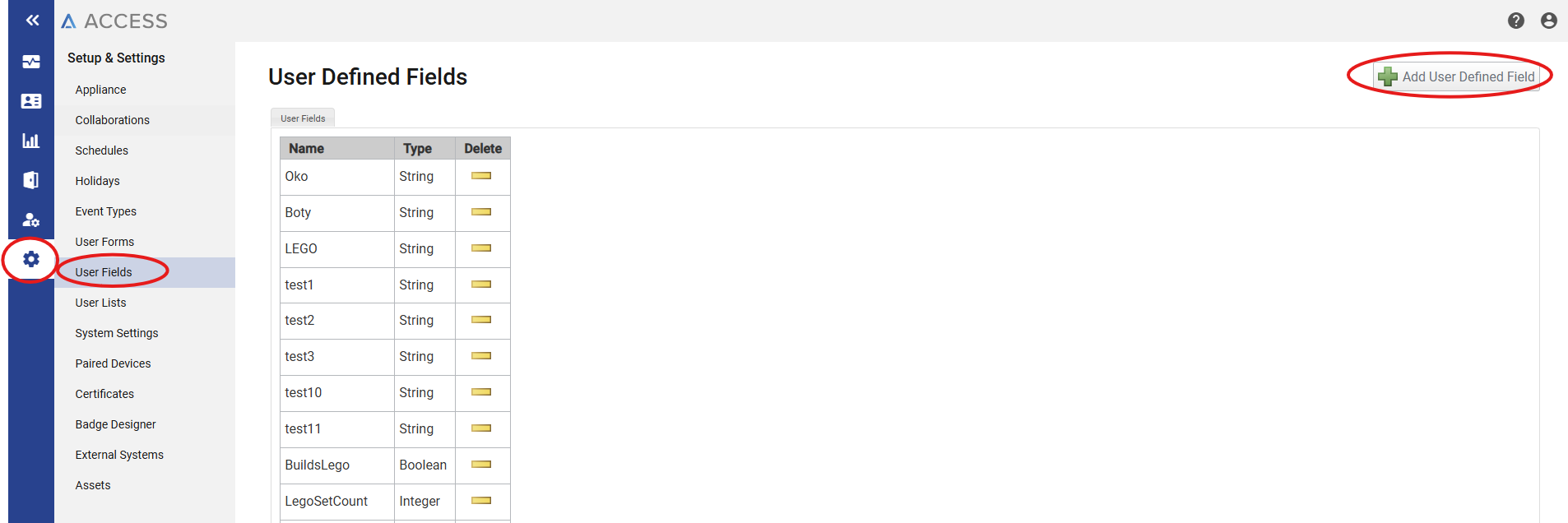
Click on Setup & Settings / User Fields in the left menu.
-
Click on the Add User-Defined Field button.
-
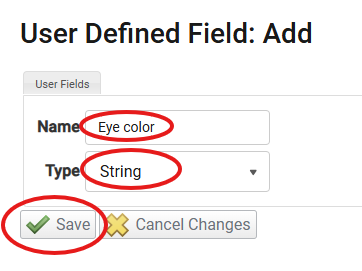
Put the AUA unique field name + type.
-
Click on the Save button.
Supported entities and data types
|
Entity |
Supports EFs |
|---|---|
|
Identity |
Yes |
|
Visit |
Yes |
|
Credential |
No |
|
Access Unit |
No |
|
Variable type (AIS) |
Variable type (Avigilon) |
Note (Avigilon) |
|---|---|---|
|
Boolean |
Boolean |
|
|
Integer |
Integer |
|
|
Decimal |
String |
|
|
String |
String |
|
|
DateTime |
Date |
The smallest unit is the second. Anything below a second is cut off on the AUA side. |
|
DateTime |
String |
It supports units smaller than a second. |
|
Not supported |
TextBox |
|
Miscellaneous
Credential plasecDownload attribute
Since agent version 1.0.2, credentials (tokens) are automatically created with the plasecDownload attribute set to true. This ensures that newly created tokens are immediately marked for download to the Avigilon Unity Access controllers.
No additional configuration is required - the agent handles this automatically during credential creation, but this behavior is overridable by using $.self.PlasecDownload extension field mapping.